 | By: Koen VerbeeckProblem
At the time of writing, SQL Server 2016 preview (CTP 2.2) has been released and it contains a few exciting changes for SQL Server Reporting Services (SSRS). One of the new additions is a new chart type: the treemap. This tip will give an introduction on how to create a treemap graph.
SolutionTest Data
First of all, we need data for our treemap. In the tip Retrieving file sizes from the file system using Power Query it is explained how you can use Power Query to extract the file sizes of all the files in a folder and its subfolders. The resulting data looks like this:
read on from the above link
|
Wednesday, September 16, 2015
Create a Treemap Graph in SQL Server Reporting Services 2016 by Koen Vereeck
https://www.mssqltips.com/sqlservertip/4023/create-a-treemap-graph-in-sql-server-reporting-services-2016/

Tuesday, September 1, 2015
Parsing all the files in a directory using PowerShell by Brian Lelley
 | By: K. Brian Kelley https://www.mssqltips.com/sqlservertip/2754/parsing-all-the-files-in-a-directory-using-powershell/ Problem
I want to parse all the files in a given directory using PowerShell. I'm looking for a particular bit of information and need to search for it in all the files. Is there an easy way to do this? Check out this tip to learn more.
Solution
Yes, there is. PowerShell is very powerful because it:
As a result, looping through a list of files to find a particular text string (or several text strings) is easy to do. For instance, consider the output from this previous tip where we audited for the members of the sysadmin role across multiple SQL Servers. This PowerShell script produces a text file per SQL Server instance. This is the perfect scenario for parsing for a particular group, such as BUILTIN\Administrators.
First, let's start by defining a variable containing a path to our directory as well as another variable, an object that is an array list (this is what New-Object System.Collections.ArrayList does), to hold our findings.
$fileDirectory = "c:\scripts\reports";
$parse_results = New-Object System.Collections.ArrayList;
Now we'll need a foreach loop combined with a Get-ChildItem cmdlet call to get a list of all the files in the directory.
# Use a foreach to loop through all the files in a directory.
# This method allows us to easily track the file name so we can report
# our findings by file.
foreach($file in Get-ChildItem $fileDirectory)
{
    # Processing code goes here
}
This part so far is pretty straight forward. Now, to be able to parse the files, we will want to use the switch command. The switch command in PowerShell is similar in function to the same command in other languages. You can think of it as being capable of stacking multiple IF statements together. This is what goes where we have the comment "# Processing code goes here" in the previous block.
# We will need to tell the Switch command exactly where to parse, so we'll put together
# the full file path.
$filePath = $fileDirectory + "\" + $file;
# parse all files using a regular expression
Switch -regex (Get-Content -path $filePath)
{
    # send the counter to $null so it doesn't display on screen
        'BUILTIN\\Administrators' { $parse_results.add($file.name + " >  " + $switch.current `
        + "`r`n") > $null  }
}
Note that for each pattern of a regular expression in single quotes followed by the curly braces, we have an evaluation. In this case I'm only looking for one case, when BUILTIN\Administrators is present (the backslash is doubled since we're using a regular expression and the backslash is an escape character). If I was looking for Users, I could add another line to parse this as well.
As to exactly what is being done, when the Switch statement detects a line that matches the condition I've specified, the line contains BUILTIN\Administrators, it's adding another entry to my array list. The entry will be a concatenated string of the file name where the text was detected, along with the entire line (that's what $switch.current refers to). Once all this is done, all that's left to do is write out what was captured. That's actually the reason for the "`r`n" added to the end of each string. That puts a carriage return/new line at the end of the string so that it'll output properly.
Our finished script looks like this:
$fileDirectory = "c:\scripts\reports";
$parse_results = New-Object System.Collections.ArrayList;

# Use a foreach to loop through all the files in a directory.
# This method allows us to easily track the file name so we can report
# our findings by file.
foreach($file in Get-ChildItem $fileDirectory)
{
    # We will need to tell the Switch command exactly where to parse, so we'll put together
    # the full file path.
    $filePath = $fileDirectory + "\" + $file;
    # parse all files using a regular expression
    Switch -regex (Get-Content -path $filePath)
    {
      # send the counter to $null so it doesn't display on screen
      'BUILTIN\\Administrators' { $parse_results.add($file.name + " >  " + $switch.current `
        + "`r`n") > $null  }
    }
}

write-host $parse_results;
And the output will look like this for a couple of files that I have in the directory:
localhost,5555_sysadmins.txt > BUILTIN\Administrators localhost_sysadmins.txt > BUILTIN\Administrators |
Friday, April 3, 2015
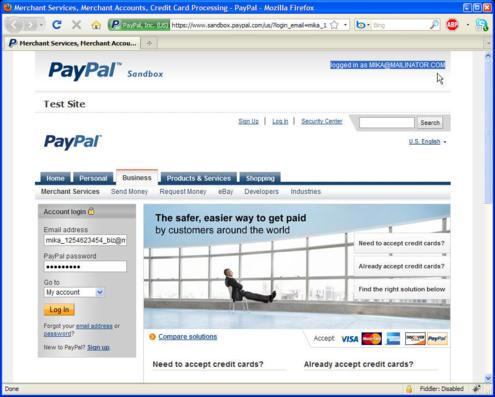
Introduction to PayPal for C# - ASP.NET developers
http://www.codeproject.com/Articles/42894/Introduction-to-PayPal-for-C-ASP-NET-developers
ayPal moved over 60 billion dollars between accounts which is, you’ll agree, a respectable amount. And also, all trends show that this growth will continue – with huge number of new accounts (over 184 million accounts in 2008 compared to 96.2 million in 2005), with a new platform named

Introduction
PayPal is probably one of the first things that gets mentioned once you start discussion on online payments. It’s not so without reason – in 2008, PPayPal X, and with more cool applications that involve paying (like Twitpay), you can bet that PayPal is here to stay. So, how can you join the whole PayPal Development movement?
Unfortunately, I would say – not so easily. When I first started with PayPal integration - it was hard, really hard. If you wish to see what I mean, just jump to the PayPal Developer Center. There is no way you’ll easily fish out what you need from that site if you are a PayPal newbie; simply - there are too many links, too many resources, and too many mixings of important and not-so-important information. So, how should you start?
Getting Started with PayPal...
Monday, December 8, 2014
Monitor Database Growth and Usage by Willem Gossink, 2014/12/04
http://www.sqlservercentral.com/articles/Monitoring/118079/
Monitor Database Growth and Usage
By Willem Gossink, 2014/12/04
As a DBA, you probably manage hundreds of databases, if not thousands. Each of these databases has at least two devices and each of these devices may grow (or shrink), either through autogrowth, scripting or manual interventions. Even if we do not consider the creation or deletion of databases or the addition of devices, you may be facing a lot of changes on the storage solution that underlies your database files. In most cases, these changes tend to gradually fill up your disks.
Build a repository
If you want to manage that process of database disk usage (capacity management?), you will require history data. You will need a way to record information about your database files and store that data in a repository. A process like that will put you in the know about changes taking place and will allow you to do some basic trending.
That is exactly what the PowerShell script outlined below will do for you: pull out information regarding size and usage of database devices from your database servers and store that information in a history table. You can then report on the data using tools such as Excel PivotChart or your own favorite graphing solution, and monitor trends. Or you can zoom in on a single database, to see the relation between the size of a data file and its usage. An example is shown below, where the red, block-shaped graph represents the growth of a database’s physical data file (.mdf) over the past year. The blue, spiked graph shows the increase in data inside the physical file over the same period.
Thursday, October 9, 2014
Use SSIS to send emails by Joe Millay, 2014/10/09
Large-scale web sites typically send thousands of emails a day. Often, the code generating these emails is in separate applications resulting in non-standardized, difficult to maintain code. The solution in this article proposes to use the power of SQL Server and SSIS to send emails.
This solution is used by Community Health Network, Indianapolis, IN, http://www.ecommunity.com, which supports eight medical campuses, 70+ physician practices, an online retailer for durable medical equipment (http://www.homehealthmedical.com), and multiple outlier facilities. The site sends thousands of emails a day: patient reminders and confirmations, online retail shopping order confirmations, administrator notifications, etc.
The SSIS package in this article has been in place for 5 years and, 3,000,000 emails later, it is still doing its magic. Instead of having mulitple lines of code in multiple locations, we now have a standardized email functionality. The solution is comprised of three basic blocks :
- PART 1: A table where the email information is stored
- PART 2: An integration services package that sends the email
- PART 3: A SQL Server Agent job that runs the package
PART 1: The Table (tbl_SendEmail) and Its Insert Procedure (usp_ins_sendEmail) ...
read on here: http://www.sqlservercentral.com/articles/Integration+Services+(SSIS)/71485/
Tuesday, October 7, 2014
Solving Kerberos Issues in SSRS When Running Beside IIS By Ian Massi 2014/10/07
http://www.sqlservercentral.com/articles/Reporting+Services+(SSRS)/116001/
Introduction
When relying on Windows authentication to give your users access to SQL Server resources from Reporting Services, Active Directory will use either NTLM or Kerberos to resolve access rights. If Reporting Services isn’t running on the same server as the resources you’re trying to access, then Kerberos is your only option to allow Windows credentials to be passed through. If Kerberos isn’t pleased with your configuration, it will visit upon you the dreaded double-hop authentication issue. You can resolve this issue by configuring Active Directory to appease it. However, when Reporting Services is running on a server that’s also running IIS (Internet Information Services), things can become a bit trickier. In this harsh environment, appeasement of Kerberos is not enough for us. We will tame it.
Environment
In our environment we were running SQL Server Reporting Services 2005 (SSRS 2005) on a separate server that already had IIS installed. SSRS 2005 requires IIS to be able to handle the web side of things and we didn’t want IIS on our SQL Server. We also have SQL Server Analysis Services (SSAS) in our environment. There are reports that use SSAS as a data source, which always requires Windows authentication. So we had the web site for SSRS set up to run in IIS under an application pool that used a domain account while the Windows Service Identity for SSRS ran under NT Authority\NetworkService.
read on ... (http://www.sqlservercentral.com/articles/Reporting+Services+(SSRS)/116001/)
Monday, June 16, 2014
Running SQL Server Databases in the Amazon Cloud (Part 1)
 | By: Sadequl Hussain |
http://www.mssqltips.com/sqlservertip/3251/running-sql-server-databases-in-the-amazon-cloud-part-1/?utm_source=dailynewsletter&utm_medium=email&utm_content=headline&utm_campaign=20140616
Subscribe to:
Posts (Atom)